How to Set Up Channel Monitoring for Automatic Clip Extraction (5-Step Guide)
Updated
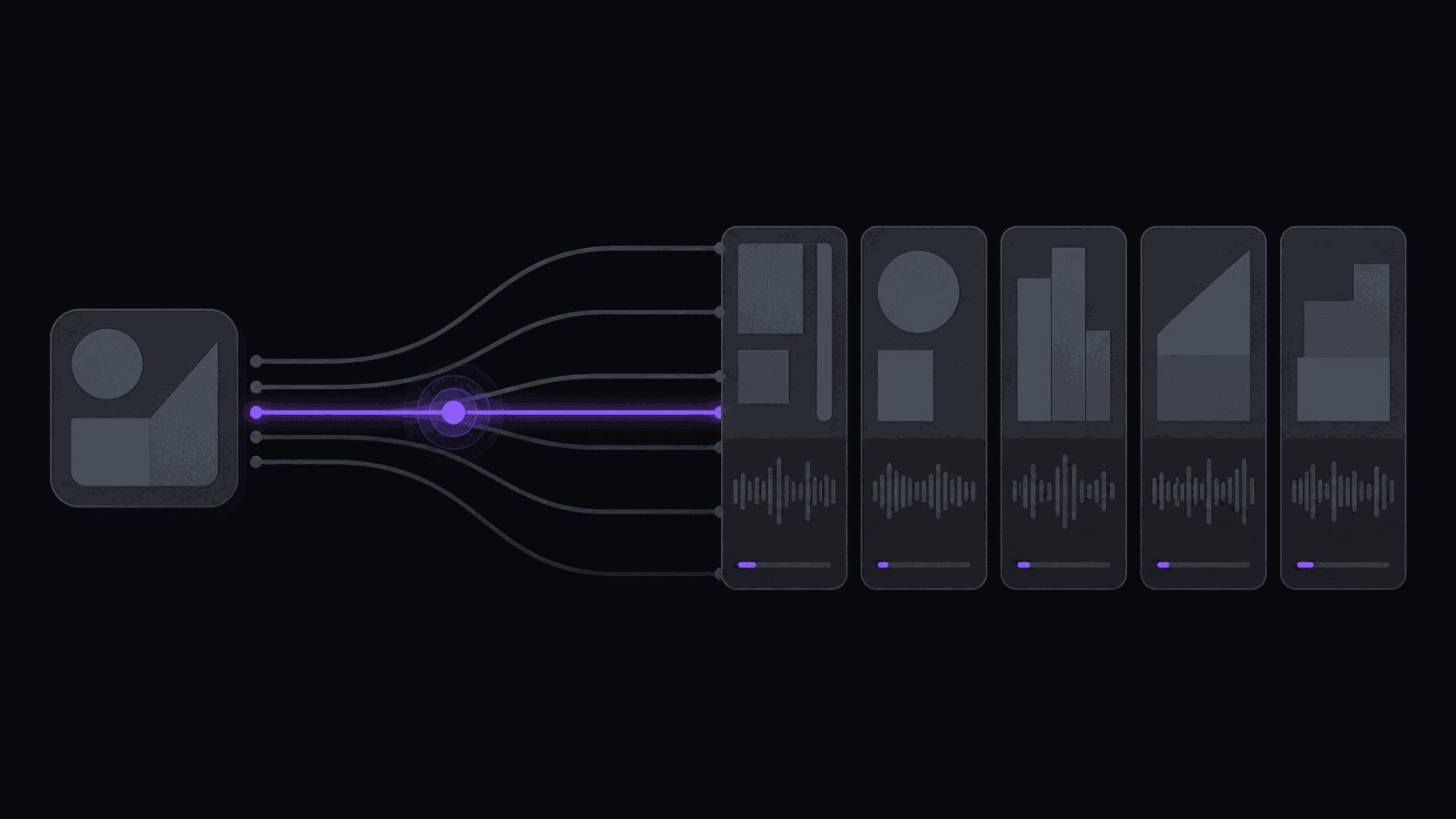
What monitoring changes
Manual clipping has a hidden cost that nobody counts: the checking. You open YouTube, see nothing new, close it. Twenty minutes later you do it again. On the day something does drop, you are already three hours behind the clippers who happened to be online.
Monitoring removes the checking entirely. You register a public YouTube, Twitch, or Kick channel once. When that channel posts, clips get generated and land in your library ready to review or publish — no submission, no timing, no refreshing.
The honest framing: this does not make you a better clipper. It makes you a consistently present one, which for short-form is most of the game. If you want the conceptual version first, read channel monitoring explained.
Step 1 — Pick channels you can actually keep up with
Monitor slots are limited by plan: 1 on Starter, 3 on Pro, 10 on Scale. That constraint is useful. It forces you to choose sources rather than collecting them.
Good monitoring targets share three traits: a predictable upload rhythm you can build a posting cadence around, source length your plan can handle (up to 2 hours on Starter, 5 on Pro, 10 on Scale), and clip competition thin enough that your version is not the fourth one posted.
A daily uploader will generate more clips than you can post and burn credits doing it. A channel that posts twice a month will leave you dark. Weekly-to-thrice-weekly is the sweet spot for a single monitor. How to pick a clipper niche is the upstream decision if you have not made it yet.
Step 2 — Add the channel and set the clip rules
Paste the channel URL into the monitoring section of the dashboard. Then set what should happen when it fires, because the defaults will not match your channel forever.
The settings that matter most: clips per video (capped at 6 on Starter, 12 on Pro, 15 on Scale), aspect ratio — 9:16 for TikTok, Reels, and Shorts, with 1:1, 16:9, and 4:5 available on Pro and up — and your caption style.
Save a brand kit before you turn monitoring on rather than after. It holds your caption styling, fonts, logo, and watermark so every automatic clip comes out looking like it belongs to your channel instead of like a default template. Retrofitting that across 200 already-generated clips is miserable.
Step 3 — Do the credit math before you leave it running
One credit equals one source minute. Starter gives you 200 a month, Pro 500, Scale 1200.
So a monitored channel that posts three 40-minute videos a week costs about 480 credits a month — that is a Pro plan running near its ceiling, not a Starter plan. A weekly 90-minute podcast is roughly 360 a month. A daily 15-minute uploader is about 450.
Streams are the exception. Only the top highlight segments of a Twitch or Kick VOD get processed, so a multi-hour broadcast typically costs 35 to 90 credits rather than one per minute — which is what makes stream monitoring affordable at all.
Run this arithmetic before you flip the switch. The failure mode is discovering on day 19 that the month's credits are gone. Pricing has the full per-plan breakdown.
Step 4 — Decide review-then-post or straight-to-schedule
Two workflows, and the right one depends on how much your niche punishes a bad clip.
Review-then-post: clips land in your library, you skim the top few by score, adjust in-points where needed, and send them out. Costs you ten minutes a day and catches the occasional clip that starts mid-word or lands on an unflattering frame.
Straight-to-schedule: connect your accounts and let clips post on a spaced schedule across up to 9 destinations. Zero daily work. Right for high-volume faceless channels where variance is expected and one weak clip costs nothing.
Start with review for the first two weeks. You will learn what your settings get wrong, fix those, and only then hand over the last mile. Skipping the review phase is how people end up with 40 published clips that all have the same fixable flaw. Scheduling covers spacing.
Step 5 — Check in weekly, not daily
Once it is running, resist the urge to supervise it. The useful cadence is a weekly pass with three questions.
Is the source still producing? A channel that went quiet needs replacing, not waiting on. Are the clips landing? Pull your top and bottom performers and look at what separates them — usually the first two seconds. Are you spending credits on videos that never yield anything postable? Then the monitor is pointed at the wrong channel.
When a source stops working, swap it. Monitor slots are meant to be reassigned, not treated as permanent. The clippers who plateau are almost always the ones still monitoring a channel that stopped delivering two months ago.
Typical turnaround from a new upload appearing to clips being ready is about 5 minutes for a normal-length video; multi-hour sources take proportionally longer.
Frequently Asked Questions
Clips are usually ready within about 5 minutes of a typical upload appearing. Long sources — multi-hour podcasts or stream VODs — take proportionally longer because there is more footage to work through.
One on Starter, three on Pro, ten on Scale. You can reassign a slot to a different channel at any time, which is worth doing the moment a source stops producing clips you would actually publish.
Public YouTube channels, Twitch channels, and Kick channels all work. New uploads and new stream VODs both trigger clipping without any manual submission.
Only if you set them to. You can leave clips in your library for review, or connect accounts and have them auto-post on a spaced schedule to 13-plus short-form destinations. Most people review for the first couple of weeks, then automate.
Clipping stops until your credits reset or you upgrade — nothing gets billed on top without you choosing it. The cheaper fix is usually pointing the monitor at a lighter source. Doing the credit math up front — one credit per source minute — avoids the situation entirely.
Related Articles
See also
Set it once, stop refreshing YouTube
Add a public YouTube, Twitch, or Kick channel to AutoClip and new uploads get clipped, captioned, and queued on their own. Starter is $19.99/mo with 200 credits.
Get started for free