The Full Clip Automation Workflow: From YouTube URL to Posted Clip
Updated
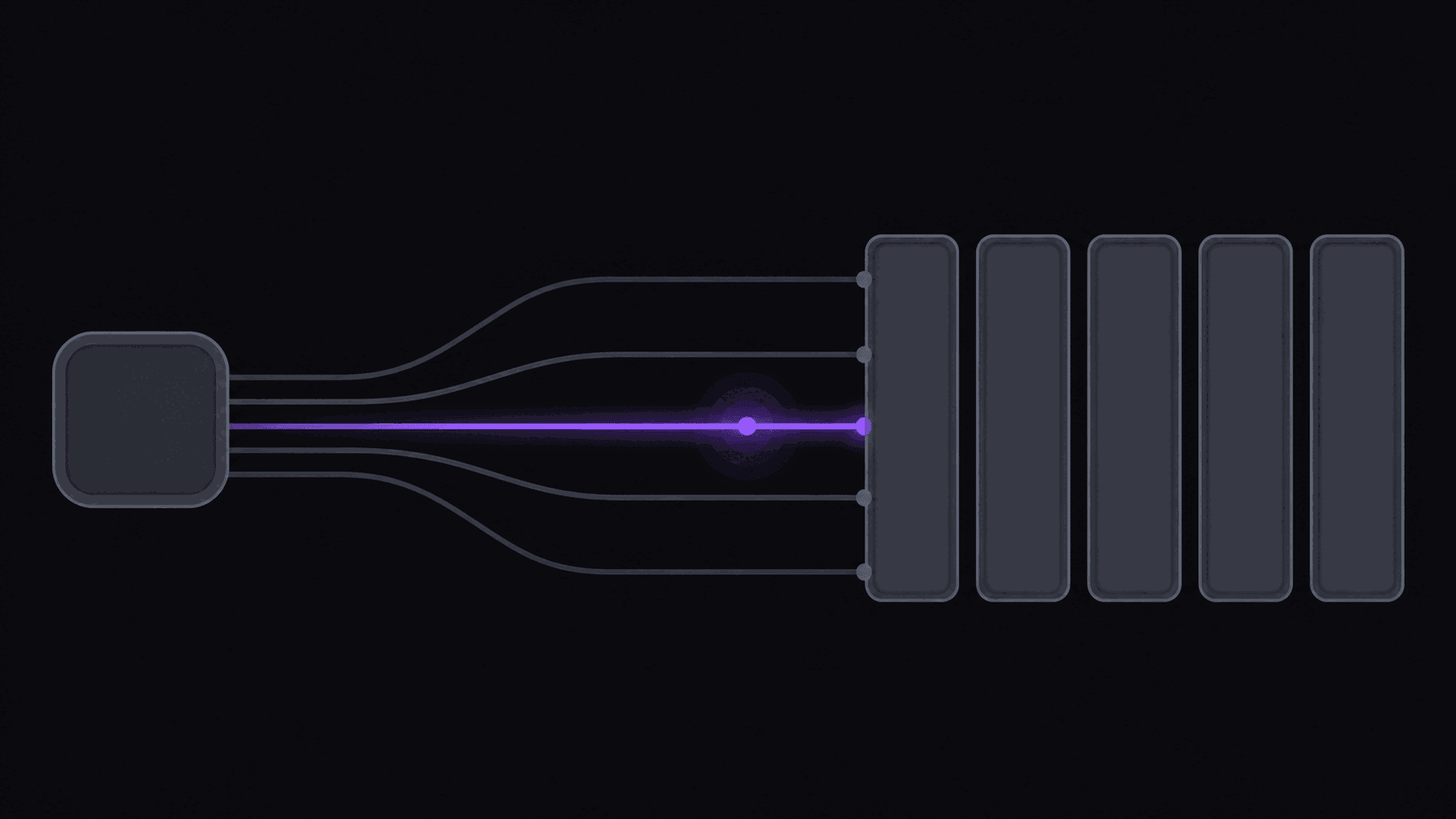
The full clip automation workflow, step by step
Automate the four mechanical steps and keep one manual. The realistic target is a few minutes a day per channel, not zero.
- Point channel monitoring at your public YouTube, Twitch, or Kick sources once, so new uploads and VODs enter the queue without you pasting a URL.
- Let the pipeline cut, reframe to 9:16 with the speaker kept centred, and apply word-synced captions — around nine clips from a typical video in about 5 minutes.
- Open the batch and sort by score, using the five-criterion breakdown to see why each clip ranked where it did.
- Review each keeper for about 30 seconds: watch the first three seconds, confirm the hook lands, write the caption text, approve. Do not skip this step.
- Fix the few clips that need it in the timeline editor — trim two seconds, move a caption. Most need nothing.
- Queue the approved clips across your connected accounts, spaced across days at consistent times rather than dumped at once.
- Post manually to Reddit, Snapchat, or Twitch if those matter to you — they are not supported destinations.
Key takeaways
Which steps to automate, and what each costs you
The split is not arbitrary. Anything that is pure repetition goes; anything that carries judgment stays.
| Stage | Manual time cost | Automate | Why |
|---|---|---|---|
| Finding new uploads | Small but constant | Yes | First thing to slip when you are busy |
| Cutting to self-contained moments | 20-40 min per video | Yes | Pure repetition once the criteria are set |
| Reframing to 9:16 | 15-20 min per clip | Yes | Mechanical, nobody credits you for it |
| Captioning | 10-25 min per clip | Yes | Word-sync is better done by machine |
| Choosing which clips ship | 30 sec per clip | No | This is where the judgment lives |
| Writing the hook text | 30 sec per clip | No | Off-tone hooks are how channels drift |
| Scheduling and posting | 15 min per clip | Yes | Enforces cadence when you are busy |
What Gets Automated and What Shouldn't
"Full automation" gets sold as a machine that runs a channel while you sleep. That's most of the truth and the missing part matters.
Four steps in a clipper's workflow are pure repetition and should never touch your hands again: finding new uploads from the channels you follow, cutting them into clips, reframing and captioning those clips, and pushing them to your accounts on a schedule. Those are mechanical, they're the bulk of the hours, and automating them is the difference between one channel and eight.
One step should stay manual: deciding which clips go out and what the hook text says. That's roughly 30 seconds per clip and it's where the judgment lives. Channels that publish entirely unreviewed drift within a couple of weeks — an off-tone clip goes out, a hook doesn't match the content, quality slips a little each day.
So the realistic target is not zero minutes. It's a few minutes per day per channel instead of an hour. That's still the difference between a hobby and an operation.
Step One: Monitoring Replaces Sourcing
The whole thing starts when a source channel publishes something. Point monitoring at public YouTube channels, Twitch channels, or Kick channels once, and new uploads and stream VODs get clipped automatically with no submission from you.
This is the step that saves the most time and the one people set up last. Manually checking for new uploads is a small task that recurs constantly, and it's the first thing to slip when you're busy — which is exactly when a source drops something worth clipping.
How many channels you can monitor is plan-bound: one on Starter, three on Pro, ten on Scale. Choose them for output rate rather than size. A channel uploading four times a week feeds a channel; one uploading monthly doesn't, no matter how big it is.
You can still submit a URL by hand any time something outside your monitored set is worth clipping. Monitoring covers the routine; manual submission covers the exceptions. Setup detail is in how to set up channel monitoring.
Step Two: Clips Come Back Finished
Once a source is picked up, the work happens without you. A typical video comes back in about 5 minutes with around nine clips; a multi-hour stream or a long interview takes proportionally longer.
What's already applied when you open them: the clip is cut to a self-contained moment, reframed to 9:16 with the speaker kept centered when the shot moves, and captioned word by word in sync with the speech. Each clip carries a virality score with a transparent five-criterion breakdown, so you can see why it was ranked where it was rather than trusting a bare number.
On Pro and above, exports can also include B-roll, background music, sound effects, spoken hooks, caption translation in 31 languages and dubbing in 25 of them, and multiple aspect ratios from the same source. Scale adds 4K export and priority processing.
The timeline editor is there for the clips that need a nudge — trim two seconds, move a caption, drop a B-roll placement. Most clips don't need it. The ones that do take under a minute.
Step Three: Review, Then Scheduled Posting
This is your 30 seconds per clip. Watch the first three seconds, confirm the hook lands, write the caption text, approve.
Then scheduling takes over. Queue approved clips across your connected accounts on a spaced schedule and they publish without you — nine short-form destinations (TikTok, Instagram, YouTube Shorts, Facebook, LinkedIn, X, Threads, Bluesky, and Pinterest), with connected-account limits rising by plan from Starter through Scale.
Spacing matters. Dumping nine clips at once trains the feed to treat your account as a firehose and puts your own clips in competition with each other. Spread them across days at consistent times. How to schedule clip posts covers cadence, and auto-posting social media clips covers the destination side.
One honest limitation: Reddit, Snapchat, and Twitch aren't supported destinations. If those are central to your distribution, you'll be posting there manually.
What It Costs to Run Weekly
Credits are the unit that decides your plan, and one credit is one source minute. A weekly two-hour podcast is 120 credits a month per show. A 45-minute YouTube upload three times a week is about 540 credits a month. Twitch and Kick VODs are much cheaper than minute-for-minute because only the top highlight segments bill — a multi-hour stream usually lands between 35 and 90 credits.
Match that against the allowances: Starter is $19.99 a month with 200 credits, one monitored channel, three social accounts, and sources up to two hours. Pro is $39.99 with 500 credits, three monitored channels, eight accounts, and sources up to five hours. Scale is $79.99 with 1200 credits, ten monitored channels, 25 accounts, and sources up to ten hours. Annual billing brings those to $12.49, $24.99, and $49.99 effective. To evaluate before committing, the 3-day Pro trial grants 100 credits, about 100 minutes of source video, and exports clean.
A practical read: one podcast channel fits comfortably on Starter, a multi-source operation needs Pro, and anyone running six or more channels off long streams is on Scale. Work from source minutes per month, not from how many clips you want. Full numbers on the pricing page, and how it works has the walkthrough.
If you're building this from nothing, how to automate a clip channel from scratch is the step-by-step version.
Frequently Asked Questions
About 5 minutes from pickup to finished clips for a typical video, plus whatever time you spend reviewing. Multi-hour streams and long interviews take proportionally longer.
Yes — one monitored channel on Starter, three on Pro, ten on Scale. You can also submit any public URL manually at any time, regardless of what's being monitored.
Sourcing, clipping, and posting do. Approving clips and writing hook text is the one step worth keeping manual — channels that publish entirely unreviewed lose consistency within a couple of weeks.
Don't approve it. Nothing publishes without you queuing it, and clips you skip cost nothing beyond the source minutes already spent on the video.
Starter is the minimum with monitoring and watermark-free export. Pro is the practical choice for most people at three monitored channels and eight social accounts; Scale is for multi-channel operations running ten sources.
Related Articles
Clip Automation: Run a 50-Post Channel on Autopilot
9 min readHow to Set Up Channel Monitoring for Automatic Clip Extraction (5-Step Guide)
5 min readAuto-Posting Clips: How to Publish to Every Platform Without Touching a File
6 min readHow to Automate Your Clip Channel from Scratch in 5 Steps
6 min readSee also
Set It Up Once, Then Just Approve
Point AutoClip at your source channels, review what comes back, and let scheduling handle the rest across 9 destinations. Run the 3-day Pro trial and check the clips before you pick a plan.
Get started for free