How to Automate TikTok Clips from YouTube in 5 Steps
Updated
Short answer
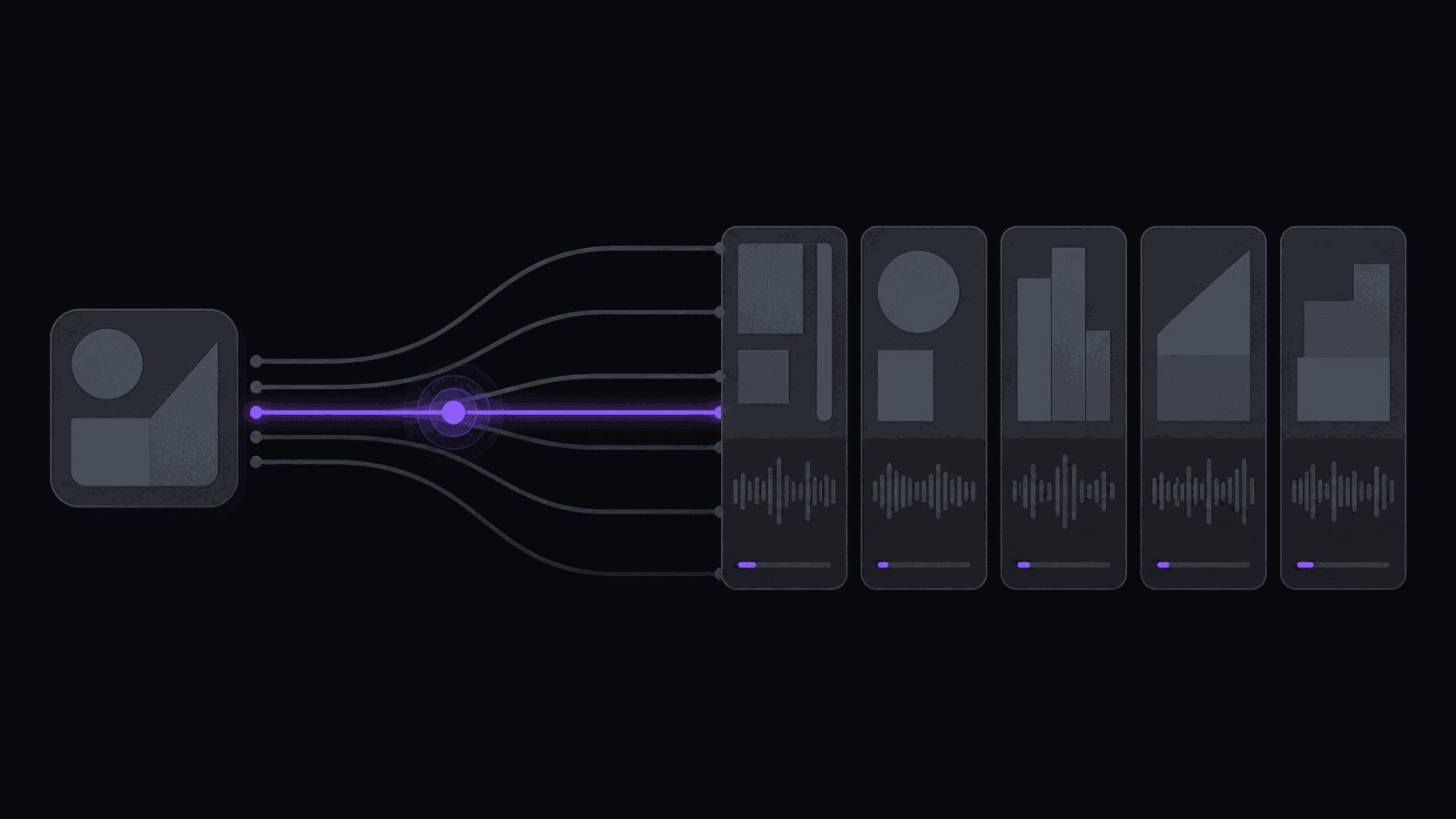
Register the YouTube channels you want to follow, turn on monitoring, set your clip preferences and caption look once, connect TikTok, and schedule rather than dumping. After that, new uploads become scheduled TikToks without you opening an editor.
Setup takes about twenty minutes. The part that decides your results is the source choice you make before touching any setting.
The five steps:
- Add the source YouTube channels you want clipped.
- Turn monitoring on so new uploads are pulled without you starting anything.
- Set clip preferences - length, count, style - and leave them alone for a week.
- Fix captions, framing and a repeatable look, saved as a brand kit.
- Connect TikTok and schedule posts spaced through the day instead of dumping them.
Key takeaways
Before you touch a setting: pick sources you can live with
The setup below takes about twenty minutes. Picking the wrong source channels wastes the next three months, so do this part slowly.
You want channels that publish often enough to feed a posting habit — roughly weekly at minimum — and whose material is genuinely clippable, meaning the value survives being cut to 30 seconds without context. Long-form interviews, commentary, tutorials, and podcasts qualify. Vlogs and heavily edited narrative videos usually do not, because the good part depends on the fifteen minutes before it.
Start with two or three channels in one recognizable lane. Not eight channels across four topics. A TikTok account that posts finance clips on Monday and gaming clips on Tuesday teaches the algorithm nothing about who to show it to.
Also check that the channels are public and that you are comfortable with the rights position of what you are reposting. How to avoid YouTube copyright claims as a clipper is the five-minute read that saves accounts.
Step 1 and 2: add the channels and set monitoring
Paste each source channel URL into your monitoring list. From that point new uploads are picked up and processed without you submitting anything — that is the difference between automation and a faster manual workflow, and it is the whole reason this setup survives a busy week.
Plan limits matter here. Starter monitors one channel, Pro three, Scale ten. If you picked three sources, you need Pro. If you picked one and want to prove the concept first, Starter is enough. Channel monitoring, explained covers what happens on a new upload; pricing has the full limit table.
One setting to get right immediately: what happens to clips after they are generated. Leave them queued for review while you are learning what the source produces. Turn on fully automatic posting only once you have watched a few batches and trust the output.
Step 3: set clip preferences, then leave them alone for a week
You are choosing how many clips per video, roughly how long they should be, and what kind of moment you want prioritized.
Sensible defaults: 20 to 45 seconds, and fewer clips per video than the maximum. A typical video yields around nine candidates; per-video caps are 6 on Starter, 12 on Pro, 15 on Scale. Taking the maximum every time is how you end up posting weak clips to hit a number.
Each clip comes back with a virality score and a breakdown across five criteria, so you can see why it ranked where it did rather than trusting a bare number. Use it to sort, not to decide — the score is good at spotting hooks and bad at knowing your audience. How to use the virality score explains the criteria.
Resist retuning after one bad batch. Give a setting a week of output before you judge it.
Step 4: captions, framing, and a look you can repeat
Captions are not optional on TikTok — a large share of viewing happens muted, and a clip without captions is a clip most people scroll past. Word-synced animated captions in a karaoke, pop, or bounce style all work; pick one and keep it, because visual consistency is what makes a returning viewer recognize you.
Vertical framing keeps the speaker centered rather than stranding them at the edge of a 9:16 crop. For two-person interviews, cuts landing on speaker changes rather than mid-sentence make an enormous difference to how the clip reads.
If you have a logo, colors, or a font you use elsewhere, save them as a brand kit so every clip comes out looking like it came from the same channel. Exports come out watermark-free on every paid plan and on the 3-day Pro trial.
Do not spend a week on this. Pick a style, ship fifty clips, then revisit.
Step 5: connect TikTok and schedule instead of dumping
Connect your TikTok account and set a posting schedule rather than publishing everything the moment it renders. Spacing clips through the day gives each one an independent shot at a cold audience; posting six at once mostly means five of them compete with the first.
Two to three posts a day is a reasonable ceiling for a new account. More than that and you are training your own audience to skip you.
Account limits by plan: 2 social accounts on Free, 3 on Starter, 8 on Pro, 25 on Scale. That matters if you are running the same clips to Shorts and Reels as well, which you generally should — the marginal cost of a second destination is zero and the marginal reach is not. Posting clips to multiple platforms covers the cross-posting rules worth knowing.
End to end, processing runs about 5 minutes for a typical video. A three-hour podcast takes proportionally longer.
Week one: what to actually check
After seven days you will have enough output to judge something. Look at three things.
Hook rate. What share of viewers make it past the first three seconds? If it is poor across the board, your clips are starting too early — trim the setup. Hook rate has the benchmarks.
Which source performed. Almost always one of your channels outperforms the others badly. Drop the laggard and add another channel in the same lane as the winner.
What you rejected and why. If you are rejecting most candidates, your source is wrong for short-form, not your settings.
One honest note on expectations: this works, but not instantly. Alex, a beginner with no prior editing experience, made $400 from clipping. Results like these are not typical — earnings depend on your niche, the campaigns you post to, and how consistently you publish. Week one is for fixing the pipeline, not for judging the business.
Frequently Asked Questions
About twenty minutes for the first source channel — adding it, setting clip preferences, choosing a caption style, and connecting TikTok. Additional channels take a couple of minutes each after that.
Around nine candidates from a typical video, capped per video by plan at 6 on Starter, 12 on Pro, and 15 on Scale. How many you publish is your call, and publishing fewer than the cap is usually the better call.
No. The cutting, vertical framing, and captioning happen without you opening an editor. What you do need is judgment about which clips are worth posting, and that develops over the first few weeks.
You can test it — the 3-day Pro trial grants 100 credits, about 100 minutes of source video, with clean exports. After that, channel monitoring starts on Starter at $19.99/mo, and monitoring more than one channel needs Pro.
Publishing everything the system generates. The shortlist is a shortlist, not a schedule. Channels that reject half their candidates outperform channels that post all of them, because the algorithm reads your weak clips as a signal about all of them.
Related Articles
See also
Set it up once, then just review
Add a YouTube channel, pick a caption style, connect TikTok. New uploads come back as scheduled vertical clips in around 5 minutes for a typical video.
Get started for free