Punch-In Zoom, Crop Zoom, Speaker Zoom: The Complete Clipper Guide
Updated
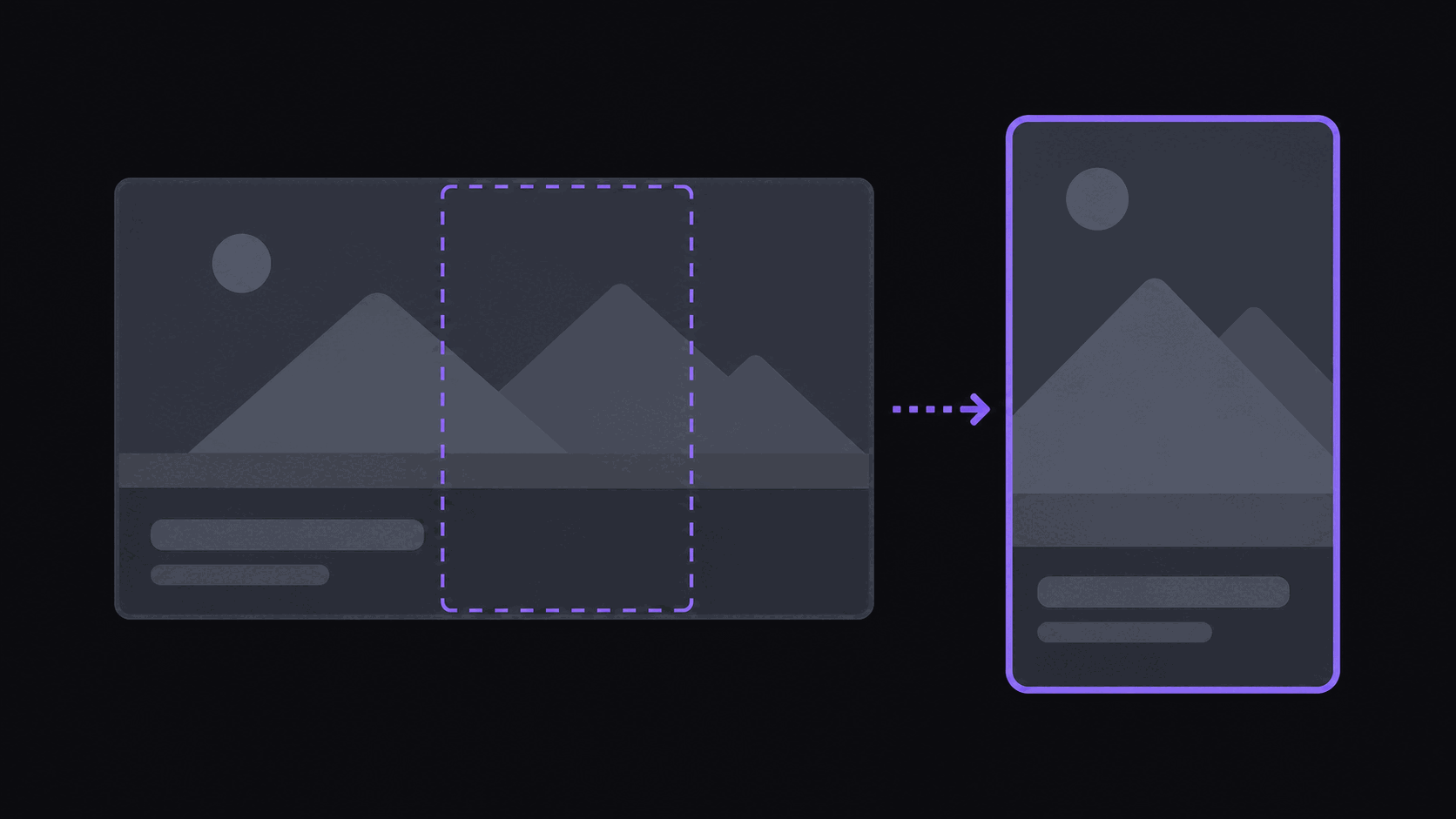
Three techniques, three different jobs
Watch a clip that holds a static frame for 45 seconds and you can feel the attention leaking out. Watch one that zooms every two seconds and it's nauseating. The difference between those two failures is knowing which zoom does what.
Punch-in zoom is a sudden scale increase on a single subject, usually landing on a punchline, a reaction, or the emphatic word in a sentence. It's a percussion instrument — it marks a beat. Used well it's invisible; used constantly it's a tic. See punch-in for the formal definition.
Crop zoom is a slow, continuous push in or out over several seconds. It doesn't mark a moment; it creates the sensation of movement in footage that has none. This is what keeps a static talking-head shot from feeling like a photograph.
Speaker zoom is a reframe that follows whoever is currently talking, cutting or panning between people in a multi-person conversation. It's not decoration — it's how you make a two-camera podcast readable in vertical.
Most clips need one of these. Good clips often use two. Almost nothing needs all three at once.
Punch-in: land it on the word, not near it
The entire effect of a punch-in depends on timing precision. A punch-in that lands 200 milliseconds after the emphatic word reads as a mistake even to viewers who couldn't articulate why.
Where they belong:
- On the emphasized word in a sentence, not the start of the sentence
- Immediately before a reaction, so the viewer's eye is already close when the face changes
- At the transition into a punchline, where the scale change functions as a drumroll
Where they don't:
- On every sentence. Three or four punch-ins in a 40-second clip is a lot. Eight is a mess.
- On low-resolution source footage, where scaling up turns a face into a smear
- On the first half-second of the clip, competing with the hook for attention
On magnitude: 15-25% is the useful range. Smaller reads as an accident. Larger reads as a zoom effect rather than emphasis, and once viewers are noticing the effect they've stopped listening to the sentence. How to use the punch-in zoom effect goes through examples.
Crop zoom: the invisible one
If a viewer notices your crop zoom, it was too fast.
The job is subtle: a static shot of a person talking, held for 40 seconds, reads as flat even when the content is excellent. A push in of a few percent over that span, applied continuously, makes the frame feel alive without giving the viewer anything to consciously register.
What to do:
- Push in slowly on the longest static stretch of the clip
- Pull back out if the clip ends on something visual — a reveal, a gesture, a screen
- Alternate direction between clips so your channel doesn't develop a visual monotone
What not to do: combine a crop zoom with a moving camera. If the source footage already moves, adding your own motion reads as instability. That includes handheld IRL footage and anything where the operator is walking.
This technique is doing the most work on podcast and interview clips, where you may have 45 seconds of one unchanging shot. It's doing almost nothing on gaming footage, which already has motion.
Speaker zoom: how multi-person clips become watchable
Vertical is a hostile aspect ratio for conversations. A wide two-shot cropped to 9:16 gives you two people occupying the middle band of the frame, both too small to read expression, with the top and bottom empty.
Speaker zoom solves it by showing you whoever's talking, at a size where their face carries the emotion. When the other person answers, the frame moves to them.
What separates good speaker zoom from bad:
Timing on the switch. Cutting on the speaker change reads naturally. Cutting a beat late reads as a glitch, and cutting mid-sentence is actively disorienting.
Handling overlap. When two people talk over each other, snapping back and forth is worse than either option. Better to hold on one, or fall back to a two-up split, until the exchange resolves.
Not doing it on quick back-and-forth. Rapid-fire banter with switches every two seconds is unwatchable. For those stretches, a split layout showing both people is the correct answer.
In AutoClip this happens automatically — the frame follows the speaker and cuts land on speaker changes rather than mid-sentence, and gaming sources get a facecam split layout that keeps the player and the gameplay both visible. You can adjust the result in the timeline editor when a specific moment wants a different treatment. How to reframe landscape to portrait video covers the underlying framing decisions.
When zooming actively hurts you
Three situations where the right amount of zoom is none.
Low-resolution source. Scaling up 20% on soft footage produces a visibly worse image, and a mushy face costs you more than the emphasis gains. If your source is rough, hold the frame.
Text and screen shares. Zooming on a slide, a chart, or a code snippet cuts off the part the viewer is trying to read. Frame it once, correctly, and leave it.
Fast comedic timing. Rapid-fire jokes are already carrying the rhythm. Adding scale changes on top competes with the timing rather than supporting it.
The general test: a zoom should make the viewer feel something they'd have felt anyway, slightly more strongly. If it's the most interesting thing happening in that second of the clip, remove it.
Worth noting alongside all of this: zoom effects change how a clip feels, not whether it gets watched. A well-punched clip on a boring moment still fails. Selection and hooks decide performance; zoom decides whether the good moments feel as good as they should. Don't confuse the polish for the substance — see why 3-second hooks are overrated for a related argument about over-indexing on craft.
Frequently Asked Questions
Three or four is a healthy ceiling. More than that and viewers start noticing the technique instead of the content, which is the opposite of what emphasis is for.
For punch-in emphasis, fast — under about 150 milliseconds, so it reads as a beat rather than a move. For crop zoom, continuous and slow enough that it never registers consciously.
Yes, and it matters more as the count goes up, because a four-person panel cropped to vertical is unreadable otherwise. The tradeoff is that switches get more frequent, so a split or multi-region layout is often better for crosstalk-heavy stretches.
Yes. Everything is adjustable in the timeline editor, and if your source is low resolution or your format calls for a locked frame, holding still is a legitimate choice.
Related Articles
Get punch-in zoom built into every clip
Vertical reframing, speaker-following framing, and emphasis zooms are applied automatically — and every one of them is adjustable in the timeline editor.
Get started for free