9:16 Reframing Tools Compared: What Actually Tracks
Updated
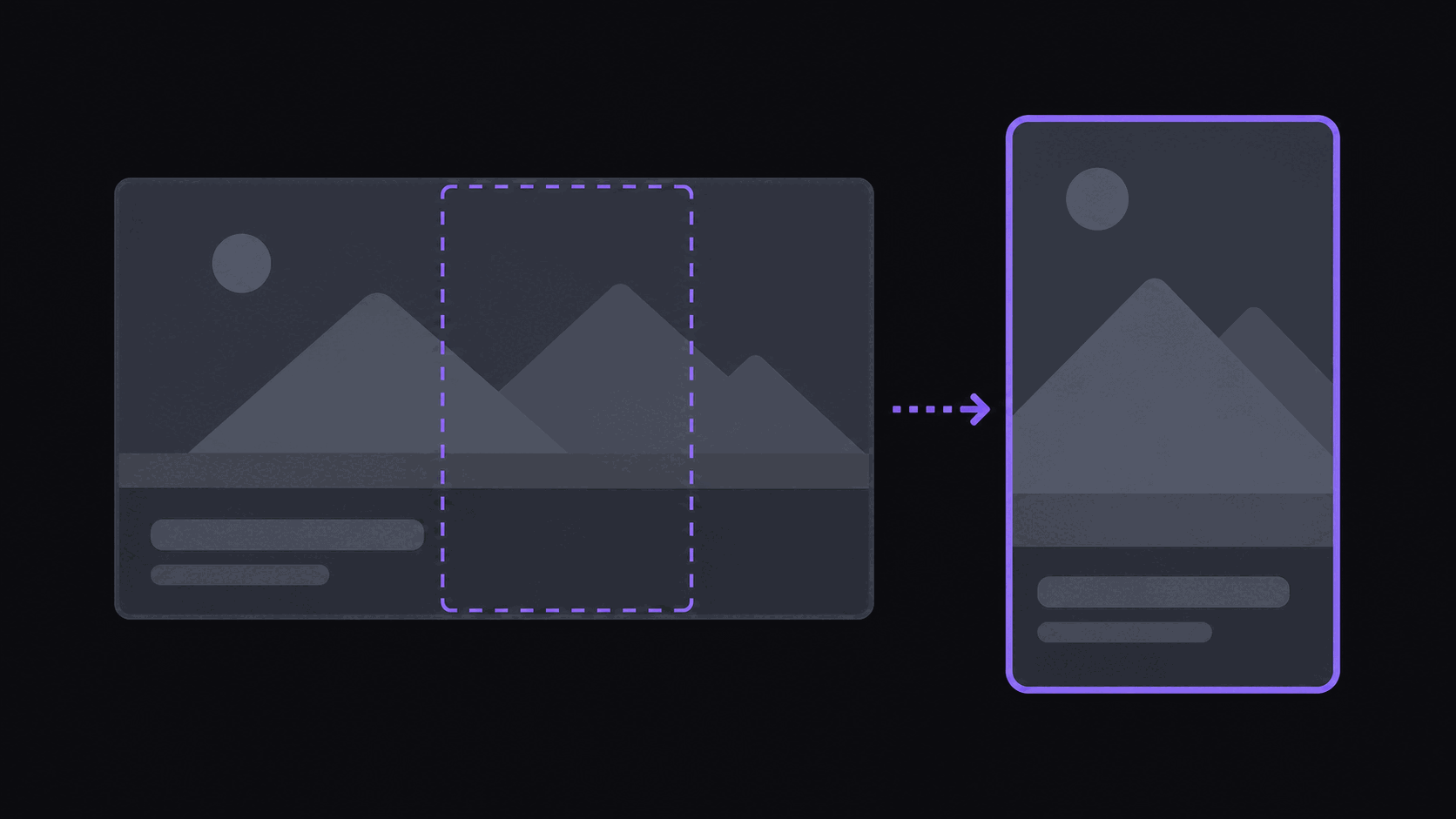
Short answer: which 9:16 reframing tool to use
Pick by what your source footage looks like, not by the feature list. Single speaker to camera works on almost anything, including free editors. Two-person interviews need speaker-aware cutting or a stacked split. Gaming and commentary streams need a facecam-plus-content split layout, which is where the biggest quality gaps sit.
Every tool says "AI reframing" and most of them centre-crop. Test your own worst-case sixty seconds on a phone before you buy — that tells you more than any comparison table, including the one below.
Key takeaways
Reframing tool categories compared
This groups the market by what each category is built to do rather than quoting prices, which move too often to be useful in a blog post.
| Category | Speaker tracking | Two-speaker handling | Facecam + content split | Automation |
|---|---|---|---|---|
| Manual editors (CapCut, Premiere, Final Cut) | Manual, or basic auto-reframe | You cut it yourself | You build it yourself | None |
| Caption-first tools | Fine for talking heads | Limited | Rarely | Captions-led |
| Generalist clip generators | Generally good on podcasts | Usually supported | Variable | Full pass |
| Stream-specific tools | Built around gaming layouts | Narrower focus | Priority feature | Full pass |
| AutoClip | Speaker-tracked | Cuts placed on speaker changes | Yes, split layouts | Full pass, 9 post destinations |
If reframing is the only thing you need, a dedicated reframe tool or a free editor will do it for less. The case for a full generator is that reframing is one step of five.
Bad reframing is invisible until it isn't
Watch a clip where the speaker's head sits slightly off-center, or where they gesture and a hand leaves the frame. You probably won't consciously notice. You'll just swipe.
That's what makes reframing quality hard to shop for. Nobody writes "the crop was 40 pixels off" in a review. They write "my clips don't perform." But if you post two versions of the same moment — one center-cropped, one with the speaker kept properly framed — the difference in how long people watch is not subtle.
This is also the feature where marketing language is least useful. Everything says "AI reframing." The gap between the best and worst implementations of that phrase is enormous.
The four things that separate them
Ignore feature lists and check these.
Does it track, or does it crop? A static center crop is the baseline. Real tracking follows the subject as they move. Test it on footage where someone stands up or turns away.
How does it handle two people? Interview footage with two speakers side by side is where most tools fall apart. The good answers are cutting between speakers as they talk or a stacked split; the bad answer is a crop that centers on the gap between them.
Does it handle facecam-plus-content layouts? Gaming and commentary streams have a small facecam and a big content window. A single crop of either one loses half the clip. A split layout showing both is the right shape, and comparatively few tools do it well.
Does it thrash? Over-eager tracking jitters between subjects and produces a clip that feels like it's shaking. Smooth beats reactive.
How the main options stack up
In rough tiers, without pretending pricing is stable enough to quote:
Manual editors ([CapCut](/compare/autoclip-vs-capcut), Premiere, Final Cut). Total control, zero automation. CapCut's auto-reframe is decent for single-speaker footage and free, which makes it the right answer for someone making two clips a week. At twenty clips a week it's a treadmill.
Caption-first tools ([Submagic](/compare/autoclip-vs-submagic), Captions and similar). Strong caption styling, reframing that's fine for talking-head footage and weak on complex layouts. Choose these if captions are the reason you're buying.
Generalist clip generators ([Opus Clip](/compare/autoclip-vs-opus-clip), Klap, Vizard and similar). Detection plus reframing plus captions in one pass. Reframing quality is generally good on podcasts and interviews, more variable on gaming footage. Priced per month with credit-style limits.
Stream-specific tools ([StreamLadder](/compare/autoclip-vs-streamladder), Eklipse and similar). Built around gaming layouts, so facecam handling is a priority rather than an afterthought. Narrower on everything else.
AutoClip. Speaker-tracked 9:16 with facecam split layouts for gaming and commentary sources, cuts placed on speaker changes for multi-speaker material, plus multi-aspect export — 9:16, 1:1, 16:9, and 4:5 — on Pro, and multi-region layouts on Scale.
Honest positioning: if you only need reframing and nothing else, a dedicated reframe tool or CapCut will do it for less. The case for a full generator is that reframing is one step of five, and paying for five tools to do five steps is how clip channels end up spending more on software than they earn.
Choosing by what you actually shoot
Single speaker to camera — almost anything works. Take the cheapest option with good captions.
Two-person interviews and podcasts — you need speaker-aware handling. A tool that crops to a fixed point between two people will make every clip feel wrong and you'll never quite diagnose why.
Gaming and commentary streams — split layouts are close to mandatory. Test with real footage before committing; this is where the biggest quality gaps live.
Multi-person panels — the hardest case. Expect to hand-fix some clips regardless of the tool.
Sports and fast motion — subject tracking struggles when the subject moves fast and unpredictably. Wider framing usually beats tighter tracking here.
More on the mechanics in reframing landscape to portrait, and best clip length per platform if you're tuning the output side.
Test it properly before you buy
Marketing demos use footage chosen to flatter the tool. Run your own.
Take sixty seconds of your worst-case source — the one where the speaker moves, or the facecam is small, or two people talk over each other. Run it through two or three tools. Watch on a phone, not a monitor, because that's where the clip will actually be seen.
Then check the boring things: is the head consistently centered, does the frame drift, does anything important sit under where captions will land, and does the tracking jitter. Five minutes of this tells you more than any comparison table, including this one.
Most tools have a free tier that's enough for the test. AutoClip's 3-day Pro trial gives you 100 credits, about 100 minutes of source video, for exactly this purpose; paid plans start at $19.99/month for Starter with 200 credits, where one credit covers one source minute.
Frequently Asked Questions
Converting landscape video to vertical for TikTok, Shorts, and Reels. Done badly it's a center crop that cuts off whatever isn't in the middle. Done well the subject stays framed as they move.
No, and the gap is widest on hard footage — two speakers, small facecams, people who move. On a single person sitting still, most tools look identical.
For a couple of clips a week with a single speaker, yes, and it's free. At volume the manual steps around it become the bottleneck, not the reframe quality.
Anything with a real facecam split layout. Cropping to the gameplay loses the reaction; cropping to the facecam loses the context. Test with your own stream footage — this is the case where tools differ most.
On Pro and above, yes — 9:16, 1:1, 16:9, and 4:5 from the same clip, which matters if you're posting the same moment to short-form and to a feed that prefers square or 4:5.
Related Articles
See also
Test the hard footage
Run your worst-case source through AutoClip's 3-day Pro trial and see how speaker tracking and split layouts handle it before you pay anyone.
Get started for free