Stream Auto Clip Software: What It Does and What It Can't
Updated
Short answer
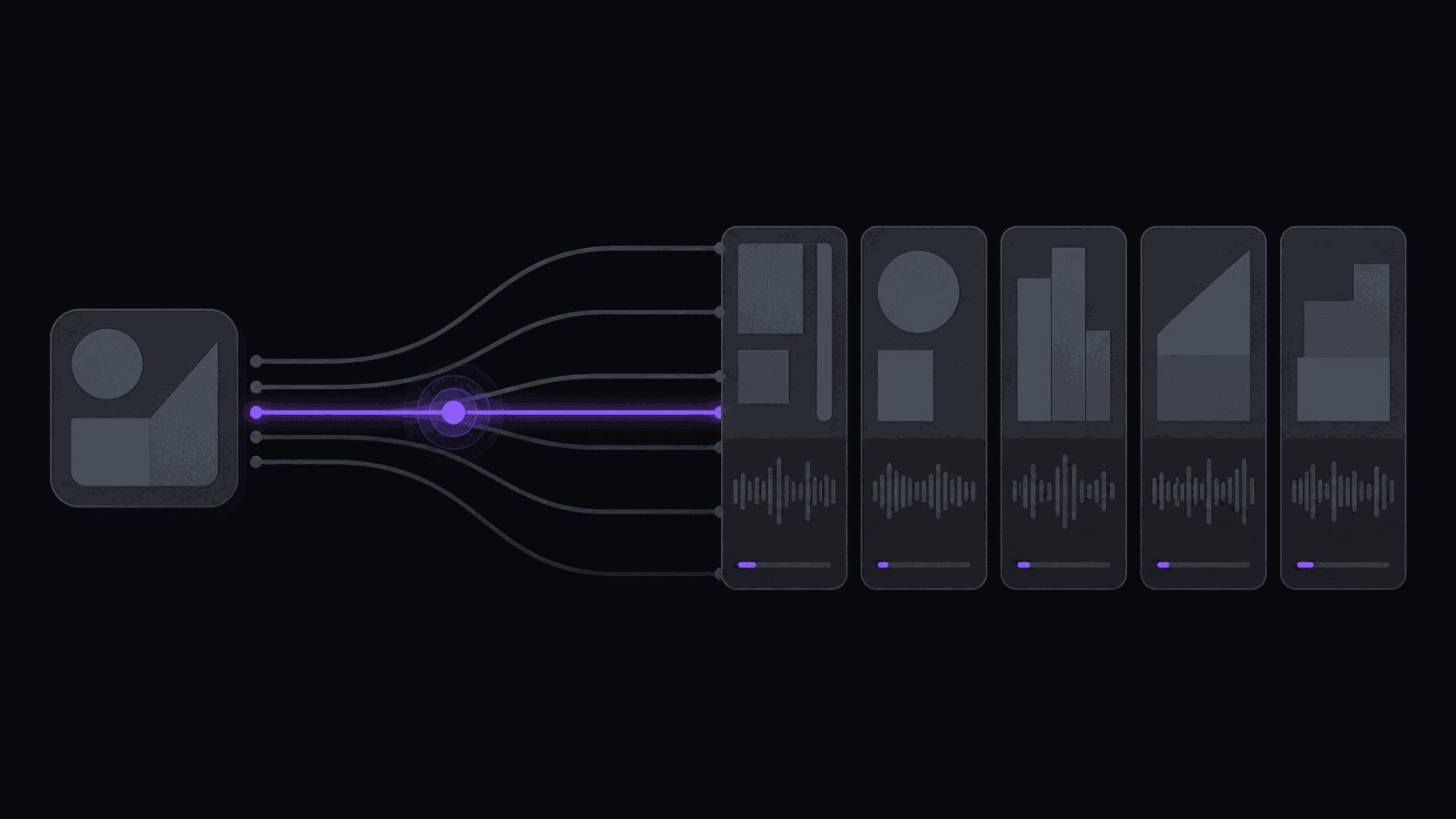
stream auto clip software software watches a Twitch or Kick channel, pulls the VOD when a broadcast ends, and returns vertical, captioned clips from the segments worth keeping. AutoClip does this on 1 monitored channel with Starter, 3 with Pro and 10 with Scale, from $19.99 a month.
Streams are the hardest source there is: hours of setup, chat-dependent jokes, and running bits that need context. Expect a lower hit rate than a podcast, and expect to review every batch rather than posting it blind.
Key takeaways
Streams versus podcasts as a clipping source
| Factor | Interview podcast | Live stream VOD |
|---|---|---|
| Usable material per hour | High | Low, concentrated in bursts |
| Context dependence | Low | High, chat and running bits |
| Framing problem | Two speakers | Gameplay plus facecam |
| Typical source length | 1-3 hours | 3-8 hours |
| Review effort per batch | Moderate | Higher, more to discard |
The practical consequence is that stream channels need a plan tier with a longer source-length limits than podcast channels do, even at identical posting volume.
Live Broadcasts Are the Hardest Source to Clip
A two-hour interview podcast is a gift. Two people, good audio, structured conversation, a usable moment every ten minutes or so.
A six-hour variety stream is the opposite. There's forty minutes of setup and technical difficulties at the front, chat-dependent jokes that make no sense out of context, a running bit that only works if you saw the last three broadcasts, long stretches where nothing happens, and four genuinely great moments scattered across hours five and six.
That's what stream auto clipping software has to work with, and it's why the honest expectation for streams is a lower hit rate than for podcasts. Anyone promising the same yield from both is describing a product that doesn't exist.
What automation is genuinely good at here is the part that's unpleasant: not missing the broadcast. If a streamer you cover goes live at 3am and ends at 9am, the difference between clips waiting for you at breakfast and clips you'll get to on Thursday is most of your view count.
Setting It Up on Twitch and Kick
The setup is per-channel, once. Connect Twitch or Kick as a source, add the channels you cover, and decide whether output goes to a review queue or straight onto a spaced posting schedule.
Kick is worth calling out separately. VOD retention there is shorter than on Twitch, which makes automatic pickup meaningfully more valuable — a broadcast you meant to get to next week may simply not be there. If you're building on Kick, the availability difference should shape your workflow more than any feature comparison. Kick is also less crowded with clippers than Twitch, which is the actual reason to be there.
On cost: credits are source minutes, but stream clipping doesn't bill minute-for-minute. Only the segments worth pulling get processed, so a multi-hour broadcast typically runs 35-90 credits. That's the difference between a stream-focused channel being viable on a $19.99 Starter plan and being priced out entirely. Monitored channel counts are what usually push people up a tier — one on Starter, three on Pro, ten on Scale.
Turnaround for a typical video is roughly 5 minutes; a six-hour VOD takes proportionally longer.
What It Gets Right and Where You Step In
Reliably good: pulling the moment where the room changes — the reaction, the outburst, the sudden silence. Keeping the streamer in frame through a 9:16 reframe when they move around. Facecam split layouts for gameplay, where the game and the reaction both need to be visible. Word-synced captions that land on the beat.
Reliably needs you: the in-joke. The moment that's funny because of what happened last Tuesday. Knowing that a throwaway line will detonate in a specific community. There is no version of this that a scoring system reads, and if you've followed a streamer for two years, that knowledge is your actual competitive advantage — you should be spending your time there, not on caption timing.
The practical split: let the tool produce and rank the shortlist, then override it. Promote the clip you know will land even if it ranked fourth. Kill the top-ranked one if the context is wrong. You'll do that in about a minute per clip, which is a very good trade for the hours you're not spending navigating long VODs.
A Short Evaluation Checklist
Five questions, in order of how much they matter:
- Does it start without me? If you have to paste the VOD link, it's a faster editor, not automation.
- How does it price a six-hour broadcast? Per-minute pricing makes stream clipping unaffordable. Ask this before anything else.
- Does it handle gameplay layouts? A single centered crop wastes half the frame when the facecam and the game both matter.
- Where does it post, and on a schedule? Producing clips you then post by hand across four apps solves half the problem. Worth knowing: TikTok, Shorts, Reels, and X are supported destinations; Twitch and Reddit are not.
- Can I fix a clip without starting over? Duds happen. Adjusting a cut or a caption line should take seconds.
Everything else — caption style options, export presets — is real but decides nothing. Check the specifics against current plans rather than a comparison table someone wrote a year ago.
Frequently Asked Questions
A typical video is around 5 minutes end to end, and long broadcasts scale up from there. The practical outcome is that an overnight stream is clipped and queued before you're awake, rather than sitting in a backlog.
Yes, both, plus public YouTube channels. Kick benefits more, because its shorter VOD retention means a broadcast you don't get to quickly may be gone.
Per-video caps are set by plan — six on Starter, twelve on Pro, fifteen on Scale — and a typical video yields around nine. For long streams you'll usually want fewer, higher-quality clips than the cap allows anyway.
Then it's gone, for you and for every other clipper. That's the argument for monitoring rather than a weekly manual sweep, and it's more pressing on Kick than on Twitch.
Related Articles
See also
Let one overnight broadcast process while you sleep
Add a channel you cover, go to bed, and judge the tool on what's in the queue at breakfast.
Get started for free