Can ClipBuddy, Quso.ai, or Opus Clip Actually Run a Clip Channel?
Updated
Short answer
Not fully. ClipBuddy and OpusClip automate clip production once you hand them a video, but neither watches a source channel for you, so the job never starts on its own. Munch's self-serve clipper is discontinued and is no longer an option at all.
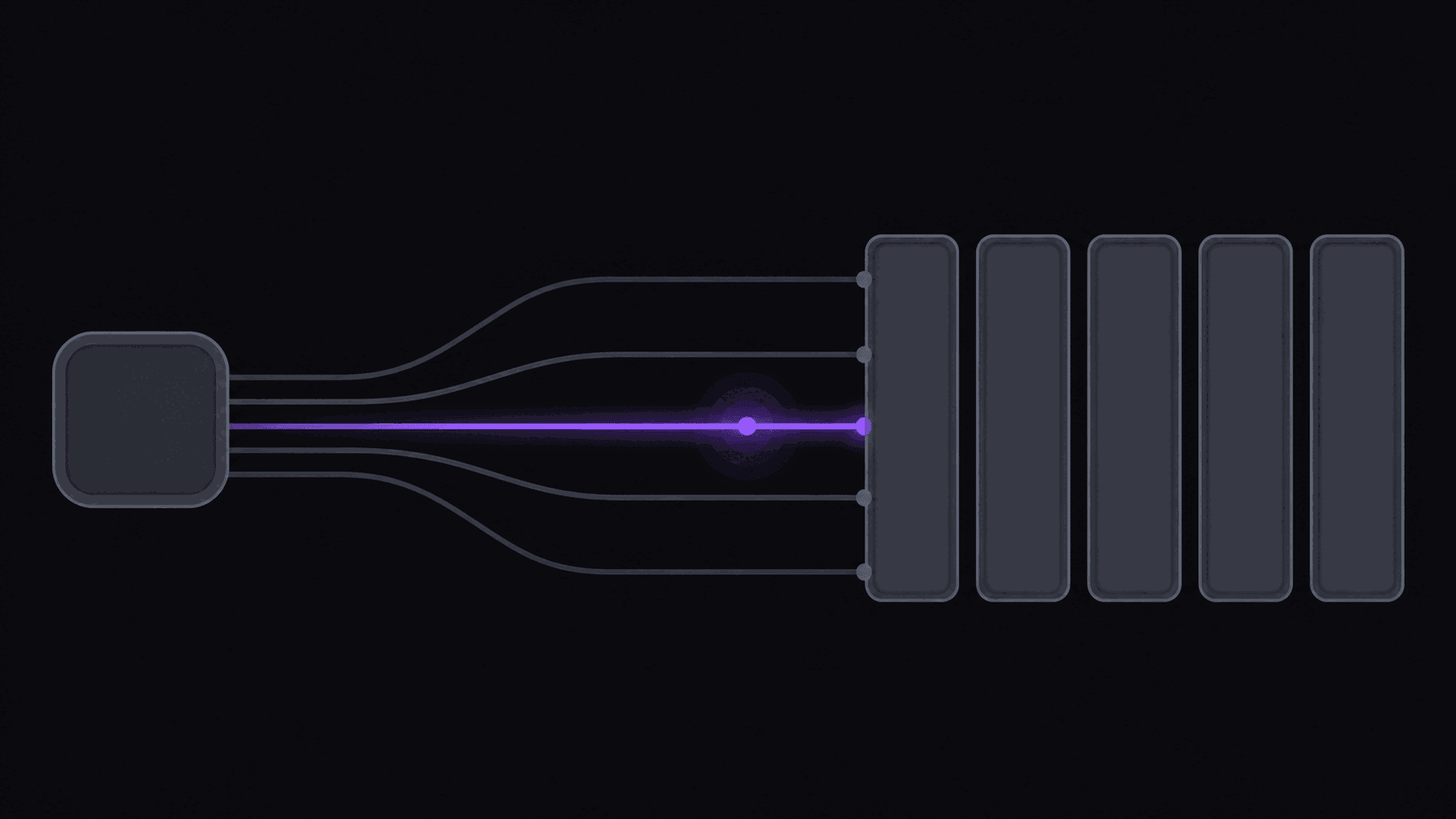
AutoClip closes that first link by monitoring public YouTube, Twitch, and Kick channels, then carries the clip through captioning and publishing.
Key takeaways
Can each tool run a clip channel unattended?
The honest answer differs by link, so compare link by link.
| Tool | Status (Sept 2026) | Watches channels | Makes clips unattended | Publishes | Pricing (Sept 2026) |
|---|---|---|---|---|---|
| ClipBuddy | Live | No | After submission | Varies | Not published here |
| OpusClip | Live | No | After submission | Varies | Not published here |
| Munch clipper | Discontinued | Not applicable | Not applicable | Not applicable | Not applicable |
| AutoClip | Live | Yes - 1 / 3 / 10 by plan | Yes | 9 destinations, optional queue | $19.99 / $39.99 / $79.99 per month |
Setting up unattended coverage, in order: 1. Name the public channels you cover as monitored sources. 2. Connect the posting accounts you actually use. 3. Set caption style, fonts, and logo once in a brand kit. 4. Leave every new source in an approval queue until its tone is predictable, then loosen up.
Automation has three parts, and most tools ship one
"Automated clipping" gets used to mean three completely different things:
- Automatic selection — the tool decides which moments are worth clipping.
- Automatic triggering — the tool starts working when a new upload appears, without you.
- Automatic publishing — the finished clip reaches your accounts without a download.
Nearly every AI clipping tool on the market ships #1. That's the demo-friendly part. Very few ship #2, and #3 is patchy. If a tool has selection but not triggering or publishing, you haven't automated your clip channel — you've automated the middle ten minutes of a process that still needs you at both ends.
Sort tools by which of the three they cover, and the shortlist gets short fast.
Where the four common picks land
[Opus Clip](/compare/autoclip-vs-opus-clip) — selection: yes, and strong. Triggering: no, submissions are manual. Publishing: partial, through a scheduler. It's the best-known name here and the closest thing to a clipper tool among creator-first products, but the source channels you cover never trigger anything.
Munch — no longer applicable. Munch retired its clipping product; getmunch.com redirects to munchstudio.com, and Munch Studio now generates, schedules, and publishes on-brand social posts for local businesses from their own website and media. Nothing in it clips a creator's VOD for you.
ClipBuddy — selection: yes, aimed at stream-style content. Its source coverage is narrower than most clippers assume — worth confirming against your actual sources before subscribing, since Twitch and Kick support is where it gets thin.
Quso.ai (formerly [Vidyo.ai](/compare/autoclip-vs-vidyo-ai)) — selection: yes. Triggering: no. Publishing: partial. Renamed at the end of 2024, with accounts carried over, and since broadened into editing, scheduling, and analytics. Same shape as Opus Clip with different pricing.
None of this makes them bad products. They're built for a creator with one channel and their own footage, and for that person the missing pieces don't exist as problems. The mismatch only appears when the source isn't yours.
The midnight test
A creator you cover ends a 3-hour stream at 12:40am. It's your best source of the week and the clip window is roughly the next 24 hours before the moment goes cold.
On a submission-based tool: you either stay up, or you get to it in the morning and post into a dead window.
With monitoring, the VOD gets picked up when it appears. A typical video is done in about five minutes; a 3-hour stream takes proportionally longer, so figure it's ready well before you're awake. You wake up to a review queue instead of a to-do list.
This is the whole argument for #2, and it's why it matters more than selection quality for anyone covering multiple sources. Perfect clip selection you get to twelve hours late loses to good clip selection that was ready at 1am. Set it up here.
What the math looks like across several creators
Say you cover six creators. Four upload podcasts averaging 80 minutes, twice a week. Two stream 3–4 hours, three times a week.
Long-form: 4 creators × 2 uploads × 80 min = 640 source minutes a week. Streams: 6 VODs a week, billed on highlight stretches at roughly 35–90 credits each, not the full 200+ minutes.
On a strict per-minute model, the streams alone would eat the plan. On AutoClip's model — 1 credit per source minute with stream VODs billed on highlights only — you're comparing against 200 credits on Starter ($19.99/mo), 500 on Pro ($39.99/mo), 1,200 on Scale ($79.99/mo).
Be honest about the fit: a six-creator operation at that cadence is a Scale-tier workload, and Scale is where the 10 monitored channels and 25 connected social accounts live anyway. If you're running one podcast source and posting three times a week, Starter genuinely covers it and you shouldn't be talked upward.
So: can any of them run the channel?
Straight answer — Opus Clip, ClipBuddy, and Quso.ai can each do a real job for you, and none of them can run a clip channel unattended. They automate selection. You remain the trigger and, for some of them, the publisher.
Whether that matters depends entirely on scale. One source channel, two posts a week, content you enjoy watching anyway? The manual submission is twenty minutes and buying a pipeline is overkill.
Six sources, daily posting, streams that drop at unpredictable hours? Every hour you spend pasting URLs is an hour not spent on the parts that compound — picking better sources, writing better hooks, reading what actually retained. What AutoClip does differently is cover all three parts of automation rather than the demo-friendly one.
Frequently Asked Questions
There's a free tier, and like most free tiers it's sized for evaluation rather than operation — enough to judge selection quality, not enough to run daily volume. Use it to test whether the moments it picks match the ones you'd pick, then decide on the paid tier with that answer in hand.
If YouTube is genuinely your only source, ClipBuddy's narrower platform coverage stops being a drawback and you can judge it purely on selection quality and output. The moment a creator you cover moves to Twitch or Kick, re-run the evaluation.
Yes, that's the design center. Monitor public YouTube, Twitch, or Kick channels; clips generate from new uploads and VODs and post to your own accounts. Respecting rights and platform rules is still on you — transformative clipping holds up, straight re-uploads don't.
Yes. Each source channel and connected account is tracked separately with its own schedule and approval queue, so a gaming clip channel and a podcast clip channel don't interfere. Scale ($79.99/mo) covers 10 monitored channels and 25 social accounts.
Related Articles
Scheduling Is Not Publishing: What Auto-Post Really Means
4 min readClipBuddy Doesn't Support Twitch or Kick. Here's Who That Leaves Out.
5 min readChannel Monitoring: Auto-Clip New Uploads Automatically
5 min readQuso.ai (formerly Vidyo.ai) vs ClipBuddy vs AutoClip: Which Is Built for Clippers?
7 min readSee also
Stop being the trigger
Name the channels you cover once. New uploads and stream VODs get clipped, reframed, captioned, and queued to your accounts while you sleep. Start on a 3-day Pro trial with 100 credits.
Get started for free