Twitch Auto Clip: How to Automate Clipping From Any Channel
Updated
Short answer
Twitch's built-in clip button is for viewers saving a moment while watching; it does not help you run a short-form channel. Auto clipping for Twitch means a tool that watches the channel, takes the VOD after the broadcast, and returns vertical captioned clips you can post elsewhere.
AutoClip monitors public Twitch and Kick channels — 1 on Starter, 3 on Pro, 10 on Scale — and handles sources up to 2, 5 and 10 hours by plan. The native clip tool requires you to be present, caps the window at a minute, and leaves the result on Twitch's domain.
Key takeaways
Twitch's clip button versus auto clipping software
| Twitch clip button | Auto clipping software | |
|---|---|---|
| Requires you to be watching | Yes | No |
| Maximum length | About one minute | Set by the tool and plan |
| Vertical reframing | No | Yes |
| Captions | No | Word-synced, automatic |
| Where the file lives | Twitch's domain | Your own exports |
| Works on old VODs | Only while they exist | Yes, before expiry |
The last row is the one that catches people out: Twitch VODs expire, so a clipping workflow that depends on going back weeks later will eventually find nothing there.
The Clip Button Solves a Different Problem Than Yours
Twitch's built-in clip tool is designed for someone who is already watching. You catch a moment, hit the scissors, trim a window of up to a minute, and Twitch hosts the result on its own domain. For a viewer saving a funny reaction, that is exactly right.
It is close to useless if you are running a short-form channel.
The reasons stack up quickly. You have to be present, which means a 2am stream in your timezone is a stream you did not clip. The clip window is short enough that a moment with three minutes of setup and one line of payoff gets cut off at the knees. The output is landscape, so vertical means cropping it yourself somewhere else. There are no captions. And it lives on Twitch, not as a file you can schedule to four accounts.
Run the numbers on a realistic operation. Three streamers, four broadcasts each per week, two to six hours apiece. That is twelve VODs and something like forty hours of source video every week. Watching all of it is a full-time job that pays nothing until you post. Skimming it after the fact works, but you land your clips twelve to twenty-four hours behind the people who were watching live, and on TikTok and Shorts that lateness is most of the difference between a clip that moves and a clip that dies.
Automating Twitch clipping is not about doing less work. It is about not spending your working hours on the part of the job that has a correct answer.
What "Auto Clip" Should Actually Mean
A lot of tools use the phrase to mean "you paste a VOD link and we cut it." That is faster manual work, not automation. You are still the trigger.
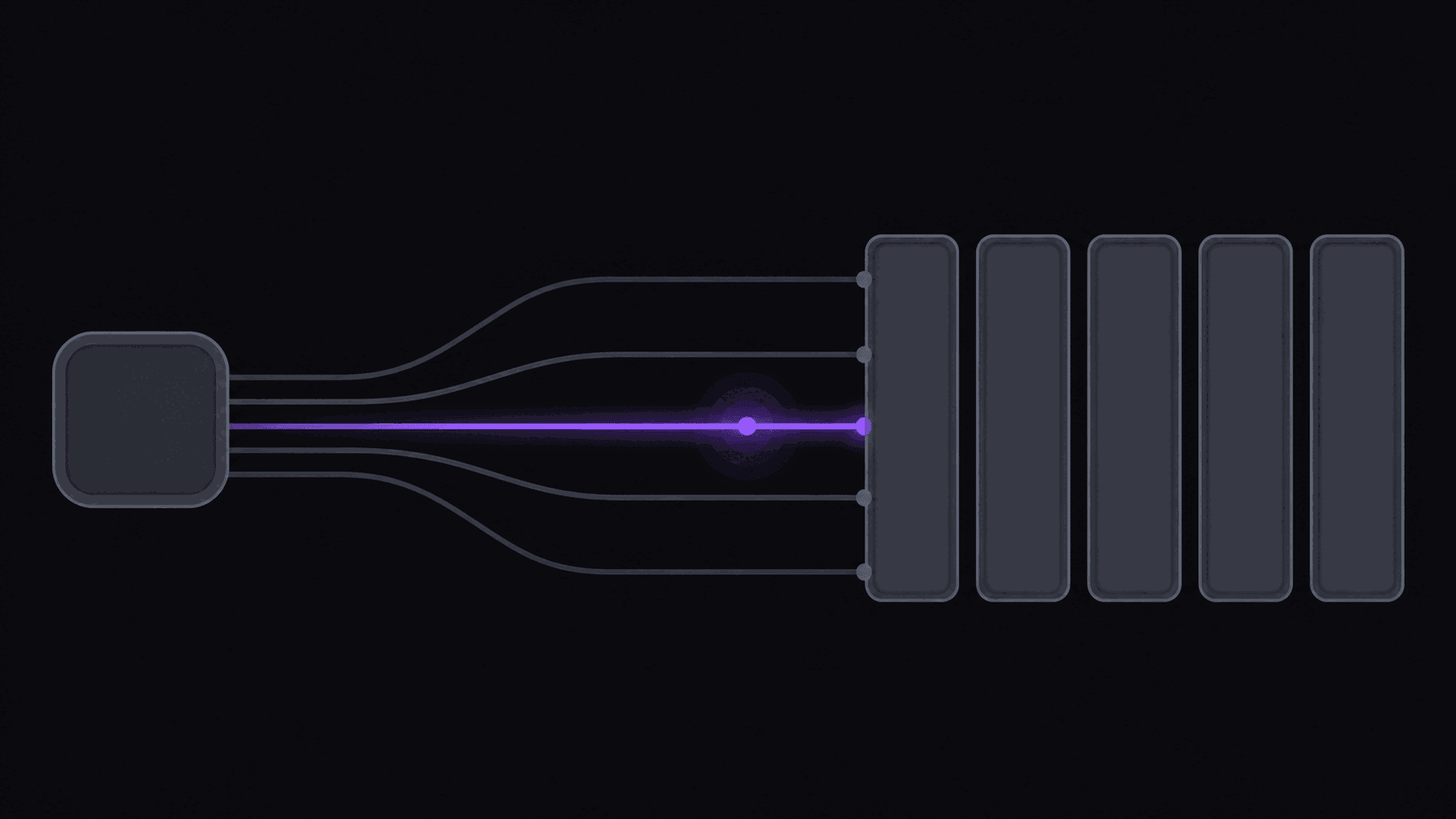
The version worth setting up looks like this: you name the Twitch channels you cover, once. When a broadcast ends and the VOD becomes available, it gets picked up on its own. The moments most likely to hook a scroller get pulled out, reframed to 9:16 with the streamer kept in frame when they move around, captioned word by word, and dropped into your review queue or straight onto a posting schedule.
You show up, look at what came back, kill the ones that miss, and approve the rest. That is a fifteen-minute morning instead of a four-hour afternoon.
The honest caveat: a stream is a worse source than a podcast, per minute. Long dead air, chat-dependent jokes, and running bits that need context are things no scoring system reads well. Expect to reject more from a six-hour variety stream than from a two-hour interview. That is a property of the source material, not the tool. Twitch VODs still make excellent source material — you just have to accept a lower hit rate and post more of them.
Setting It Up, and What Streams Cost You
The setup is short. Connect Twitch as a source, add the channels you want watched, pick how you want output handled — review-first, or straight to a spaced posting schedule across your connected accounts.
The part people get wrong is pricing math, so here it is plainly. AutoClip bills in credits, and one credit equals one minute of source video. A two-hour YouTube upload is 120 credits, which sounds brutal for stream clippers — a six-hour broadcast would eat a whole plan.
Streams are not billed that way. Only the segments worth pulling get processed, so a multi-hour Twitch or Kick broadcast typically runs 35 to 90 credits rather than several hundred. On Starter at $19.99/month you get 200 credits a month, one monitored channel, and three connected social accounts. Pro at $39.99 raises that to 500 credits and three monitored channels, which is the plan that actually fits someone covering multiple streamers. Scale at $79.99 goes to 1200 credits and ten monitored channels.
Turnaround for a typical video is around 5 minutes. A long broadcast takes proportionally longer — a six-hour VOD is not a ten-minute job, and any tool telling you otherwise is measuring something other than the whole thing.
What Changed on Twitch in 2026, and Why Vertical Now Matters More
Two changes landed in 2026 that alter the arithmetic for anyone clipping Twitch.
The Affiliate bar came down. Twitch is reported to have lowered its affiliate requirements in 2026. The effective date is disputed across the coverage and we have not been able to confirm it against an official Twitch post, so treat the numbers as reported rather than settled — but the direction is consistent everywhere:
| Affiliate requirement (rolling 30 days) | Previously | Reportedly now |
|---|---|---|
| Followers | 50 | 25 |
| Hours streamed | 8 | 4 |
| Broadcast days | 7 | 4 |
| Average concurrent viewers | 3 | 3 |
Separately, all streamers — Affiliate or not — can now switch on subscriptions, Bits, emotes and badges. Being paid for them is the part that still requires Affiliate status, and payouts still carry a $50 minimum threshold. So the monetization surface is open to everyone and the money is not. If you are clipping a small streamer, that gap is the thing worth understanding: the sub button existing on their channel does not mean they are earning from it yet.
The Discovery Feed expanded. This is the change that matters most if you clip. Twitch's Discovery Feed is a scrollable, algorithmic surface inside Twitch itself — the same shape as TikTok or Shorts — and it favours vertical content. Clips that are already 9:16 with the streamer framed and captions burned in are the ones it can serve without cropping; a landscape clip pillarboxed into a vertical slot reads as filler in a feed of full-frame video.
The practical consequence is that a vertical clip is no longer just your TikTok asset. The same file is now a distribution asset on Twitch, which changes the return on producing it properly: reframe that tracks the speaker rather than a static center crop, captions timed to the word, a cut that opens on the payoff rather than the setup. If you have been exporting landscape clips and cropping them per platform, this is the year that stops paying.
One boundary worth restating: Twitch is a source you clip from, not a destination a clipping tool can publish to. AutoClip does not post to Twitch, Reddit or Snapchat. Feeding the Discovery Feed means uploading there yourself — which is a genuine argument for keeping a clean vertical master of every clip you make.
Rights, Claims, and Not Getting Your Channel Killed
Automation makes the volume question urgent: you can now post enough Twitch content to actually attract attention from rightsholders.
Twitch's terms do not hand you blanket permission to redistribute someone else's broadcast. In practice, most streamers treat clip channels as free promotion and many actively encourage them, but "most" is not "all" and preferences change. The cheap insurance is: credit the streamer in the caption and on-screen, link the source channel, and take things down immediately if you are asked. A polite Discord message asking permission takes two minutes and settles the question permanently.
The second risk is audio. Streams are full of copyrighted music, and music is what triggers automated claims far more often than gameplay or talking does. Clips built around a musical moment are the ones that get muted or blocked. Prefer talking, reactions, and gameplay moments where the background track is incidental — and check what content-ID-safe clipping means on each platform before you scale a format up.
One thing to know up front: AutoClip posts to nine short-form destinations — TikTok, Instagram Reels, YouTube Shorts, Facebook Reels, LinkedIn, X, Threads, Pinterest and Bluesky. It does not post to Twitch, Reddit or Snapchat. Twitch is a source you clip from, not somewhere clips can be published, so if your distribution plan includes the Discovery Feed, plan for that upload by hand.
Frequently Asked Questions
Legally, redistributing someone else's broadcast is their call, and Twitch's terms don't grant you a blanket right to it. Practically, most streamers welcome clip channels that credit them and link back. Ask in Discord, credit clearly, and honor takedown requests — that covers you in the overwhelming majority of cases.
Processing begins once the VOD is available, and a typical video comes back in about 5 minutes. Long broadcasts take proportionally longer. The practical result is that clips from a stream that ended overnight are waiting for you in the morning rather than after a day of manual scrubbing.
Yes. Public Kick channels can be monitored the same way, and Kick VOD retention is shorter than Twitch's, which makes automatic pickup more valuable — a broadcast you meant to clip next week may not still be there.
The 3-day Pro trial lets you run about 100 minutes of source video through and see the output quality, exported clean. Automatic channel monitoring continues on Starter at $19.99/month, which includes one monitored channel and 200 credits.
Around nine from a typical video, with per-video caps by plan — six on Starter, twelve on Pro, fifteen on Scale. Streams vary more than podcasts do; a talkative three-hour broadcast yields more usable material than a six-hour grind session.
Reportedly, yes. The requirements are described as 25 followers, 4 hours streamed, 4 broadcast days and an average of 3 concurrent viewers over a rolling 30 days, down from 50 followers, 8 hours and 7 broadcast days with the same 3-viewer average. We have not been able to confirm those figures against an official Twitch announcement, and the effective date is disputed across the coverage, so treat them as reported rather than settled and check Twitch's own Affiliate page before you plan around them.
Enabling them, yes — subscriptions, Bits, emotes and badges are reported to be available to all streamers in 2026. Getting paid is the part that still requires Affiliate status, and payouts still carry a $50 minimum threshold. So a channel can show a sub button long before that channel is earning anything from it.
The Discovery Feed is a scrollable, algorithmic surface inside Twitch, and it expanded in 2026. It favours vertical content, which makes a properly reframed 9:16 clip with burned-in captions a distribution asset on Twitch itself rather than only a TikTok or Shorts asset. Landscape clips pillarboxed into a vertical slot read as filler against full-frame video. Note that Twitch is a source you clip from, not a destination AutoClip can publish to — feeding the feed is a manual upload.
Related Articles
See also
Point it at one Twitch channel and check the morning queue
Add a channel you already cover, let the next broadcast process, and see how many of the returned clips you'd post untouched. That number is the only evaluation that matters.
Get started for free