How to Clip Twitch Streams When It's Not Your Channel
Updated
How to clip a Twitch stream you do not own
You do not need broadcaster access. Work from public VODs rather than Twitch's native clip button, which only captures 60 seconds, only while you are watching live, and only in 16:9 hosted on Twitch.
- Copy the VOD URL from any past broadcast on a channel with archives enabled. No permissions and no local download are needed.
- Find the moments. By hand this is 30 to 60 minutes of scrubbing at 2x per VOD; automated, you submit the link and get a scored shortlist.
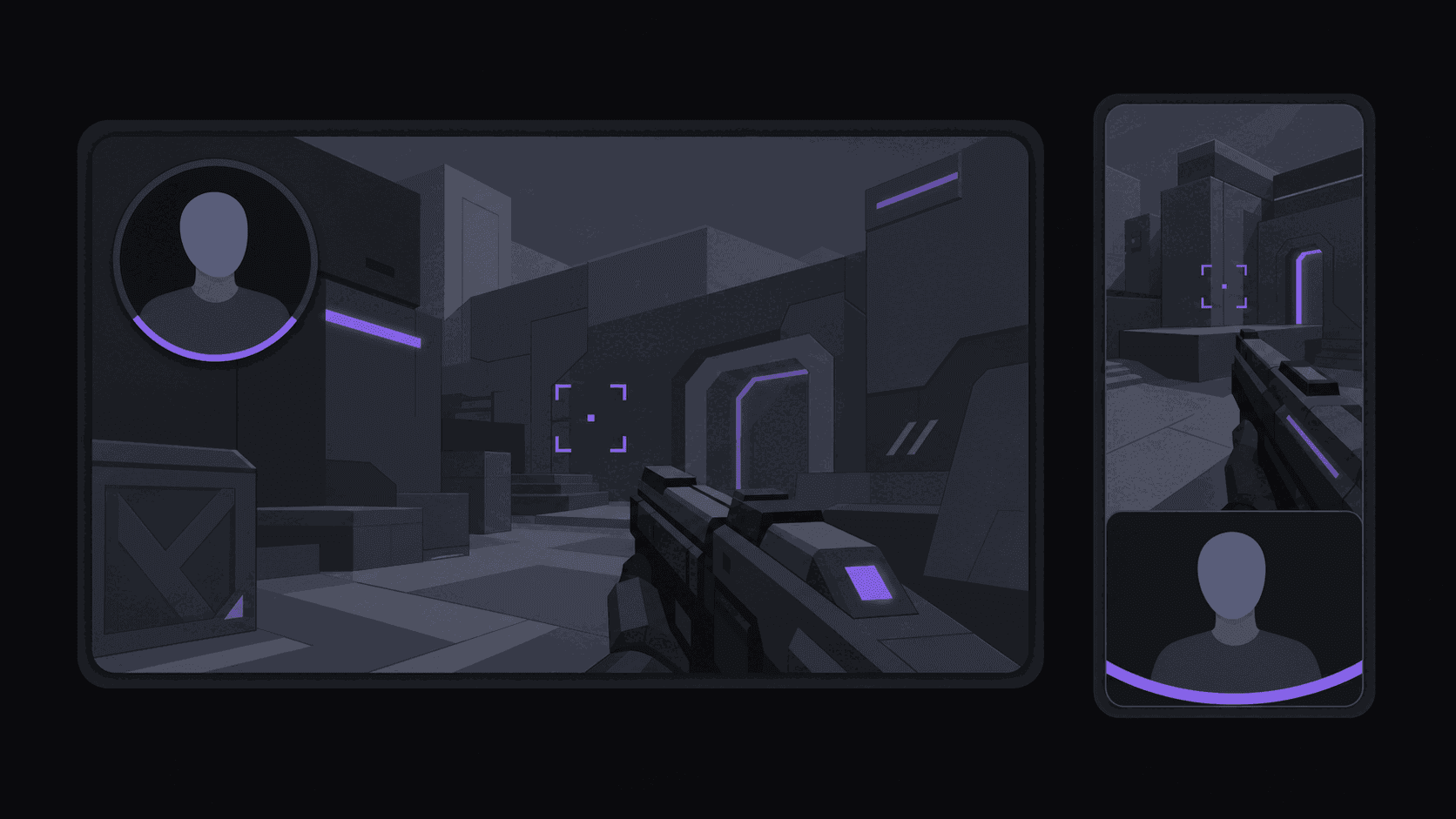
- Reframe to 9:16, keeping the speaker in frame as they move, or use a split layout showing facecam and gameplay together.
- Add word-synced captions, not a static text block — most short-form is watched muted.
- Trim the opener hard. Streamers ramble into their best lines and the first second decides everything.
- Schedule the posts spaced across TikTok, Shorts, and Reels rather than dumping them at once.
With AutoClip, steps 2 through 6 are one submission: paste the VOD URL and clips come back in about 5 minutes for a typical source.
Key takeaways
Twitch's native clip button is not a workflow
Anyone watching a stream can hit Clip and grab up to 60 seconds. It's genuinely useful in the moment and useless as a production system.
The reasons stack up. You have to be watching live to catch anything. The output is 16:9, uncaptioned, and hosted on Twitch — not a file you post to TikTok. The 60-second cap doesn't match how you'd actually cut for short-form. And you're limited to whatever you happened to be present for, which is a terrible sampling method for a channel that needs 20 clips a week.
The workflow that scales runs on VODs, not the clip button.
The VOD-to-vertical workflow
Here's the sequence, whether you do it by hand or automate it.
1. Get the VOD link. Any past broadcast on a channel with archives enabled. You need the URL, nothing else — no broadcaster permissions, no downloads on your machine.
2. Find the moments. Manually this is scrubbing at 2x for 30 to 60 minutes per VOD. Automatically, you submit the link and get a scored shortlist back. This is the step that decides whether the channel is sustainable.
3. Reframe to 9:16. A center crop of a stream layout usually cuts the facecam in half. What you want is the speaker kept in frame as they move, or a split layout showing facecam and gameplay together for gaming sources.
4. Caption it. Word-synced captions, not a static block. Most short-form is watched muted; uncaptioned clips lose viewers in the first second.
5. Post on a schedule. Spread across TikTok, Shorts, and Reels rather than all at once.
With AutoClip, steps 2 through 5 are one submission — paste the VOD URL and you get vertical, captioned clips back in about 5 minutes for a typical source, longer for a multi-hour stream. Streams bill by highlight segments rather than total runtime, so a long VOD typically runs 35 to 90 credits instead of one per minute.
Monitoring beats submitting
Manual submission works until you forget for four days and your queue is empty.
channel monitoring solves that: point it at a public Twitch channel and new VODs get clipped as they appear, with the clips waiting for you to review. Starter includes 1 monitored channel, Pro 3, Scale 10 — which maps neatly onto how these channels grow, since almost nobody stays on one streamer past month two.
Timing matters more on Twitch than most niches. Clips posted within a day of the stream ride whatever conversation is already happening; the same clip a week later is a cold post. Automation mostly buys you that day back.
The rights question, answered plainly
Clipping someone else's stream is normal, expected, and generally welcomed — streamers benefit from the reach. That's not the same as "anything goes."
What keeps you out of trouble: transformative editing rather than re-uploading segments whole, credit to the streamer in the caption or on-screen, and honoring any explicit rules a streamer publishes about their content. Some streamers ask not to be clipped; a few run their own campaigns and actively want it. Both are worth knowing before you pick a roster.
The separate risk is third-party content inside the stream — music, movies, other people's videos. That's where claims come from, and it has nothing to do with the streamer's permission. Clip around it. Fair use for clip channels covers the details, and why Twitch VODs are the best source explains why the format rewards clippers in the first place.
Gotchas that waste the most time
Archives disabled or expired. VOD retention isn't permanent and some streamers turn archives off. Check before you build a roster around someone, and clip recent streams rather than digging.
Sub-only VODs. Not accessible, not worth fighting.
Muted audio segments. Twitch mutes stretches with detected music. A moment inside a muted stretch is dead — verify before you cut.
Layout changes mid-stream. Streamers move their facecam. A clip pulled from the second hour may frame differently than one from the first, which is an argument for automatic framing rather than a fixed crop.
Posting the same moment as everyone else. For big streamers, ten channels are cutting the same reaction. If you can't be first, be different — cover streamers with fewer clippers, or bring a caption voice nobody else has.
If Kick is in your plans too, the Kick clip niche breakdown covers a field that's still thin, and the commentary-stream playbook goes deeper on the reaction format.
Frequently Asked Questions
Not for a normal transformative clip with credit — it's standard practice and most streamers benefit from it. Do honor explicit rules a streamer publishes, and skip anyone who's asked not to be clipped.
A Clip is a short capture made from a live stream, capped around 60 seconds, hosted on Twitch in 16:9. A VOD is the full past broadcast. Clip channels work from VODs because that's where the coverage and the flexibility are.
It varies by streamer and account type, and some disable archives entirely. Treat older streams as unreliable and prioritize recent ones — which is also better for reach.
The realistic risks are a takedown or a copyright claim, not a lawsuit. They come from re-uploading long unedited segments or from third-party music and video inside the stream. Edit transformatively, credit the streamer, and avoid clipping over licensed music.
Yes. Paste a VOD or video link from any of the three, or monitor the channel so new content gets clipped automatically.
Related Articles
See also
Clip any public Twitch channel
Paste a VOD link or monitor a channel — get vertical, captioned clips back in about 5 minutes without downloading anything.
Get started for free